> ## Documentation Index
> Fetch the complete documentation index at: https://sambanova-systems.mintlify.site/docs/llms.txt
> Use this file to discover all available pages before exploring further.
# Open WebUI integration guide
Open WebUI is a self-hosted, ChatGPT-style workspace with persistent conversation storage and native support for OpenAI-compatible APIs. This guide shows how to connect Open WebUI directly to SambaNova's OpenAI-compatible endpoints (with an optional LiteLLM proxy) so you can deliver fast inference from a private, customizable UI.
This guide was tested with Open WebUI v0.6.x. If you're using a different version, some UI paths or features may vary.
## Prerequisites
* [SambaCloud](https://cloud.sambanova.ai) account and [API key](https://cloud.sambanova.ai/apis).
* Python 3.11+ (Open WebUI recommends using the `uv` runtime manager, but `pip` works too).
* Optional: Docker for containerized deployment.
* Optional: LiteLLM proxy credentials if you plan to route SambaNova traffic through LiteLLM instead of connecting directly.
## Setup
1. Install Open WebUI.
```bash theme={null}
pip install uv
uv pip install open-webui
```
2. Run Open WebUI.
```bash theme={null}
open-webui serve --port=3000
```
The server launches at `http://localhost:3000`. For persistent storage, set `DATA_DIR`:
```bash theme={null}
DATA_DIR=~/.open-webui open-webui serve --port=3000
```
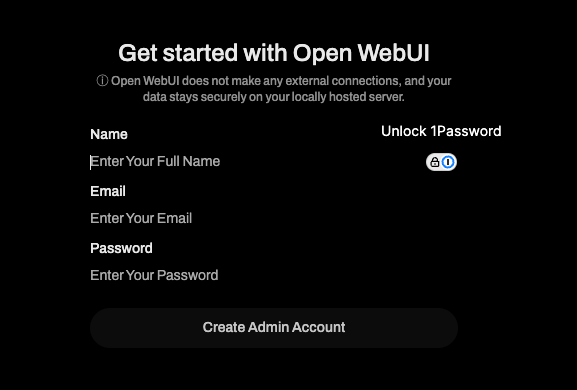
3. Create the admin account.
1. Open your browser to `http://localhost:3000`.
2. Click **Get Started**.
3. Follow the onboarding flow to set the admin email, password, and optional team name.
This account governs model visibility, team access, and connection settings.
 4. Connect to SambaCloud.
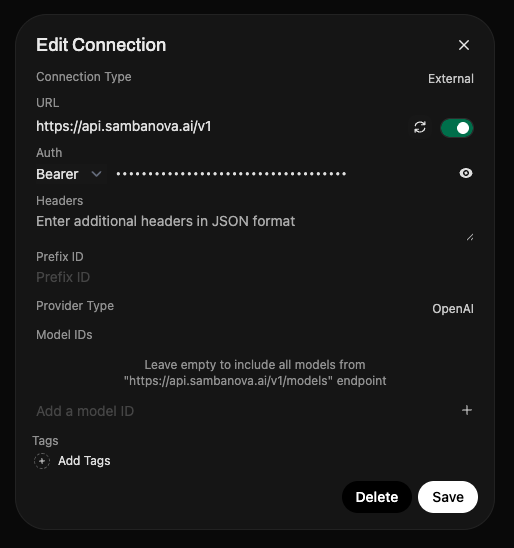
1. Click your profile icon and go to **Settings → Admin Settings → Connections**.
2. Select and edit the OpenAI-compatible option.
3. Enter your SambaCloud base URL (`https://api.sambanova.ai/v1`) and [API key](https://cloud.sambanova.ai/apis).
4. Click **Save**.
Open WebUI automatically fetches the available SambaNova models.
4. Connect to SambaCloud.
1. Click your profile icon and go to **Settings → Admin Settings → Connections**.
2. Select and edit the OpenAI-compatible option.
3. Enter your SambaCloud base URL (`https://api.sambanova.ai/v1`) and [API key](https://cloud.sambanova.ai/apis).
4. Click **Save**.
Open WebUI automatically fetches the available SambaNova models.
 5. (Optional) Connect through LiteLLM proxy.
If you already run LiteLLM as a unified gateway, add a LiteLLM connection pointing to your proxy host (for example, `http://0.0.0.0:4000/v1`) and use the proxy's API key. SambaNova-backed models registered in LiteLLM appear alongside the direct connection.
6. Test the connection.
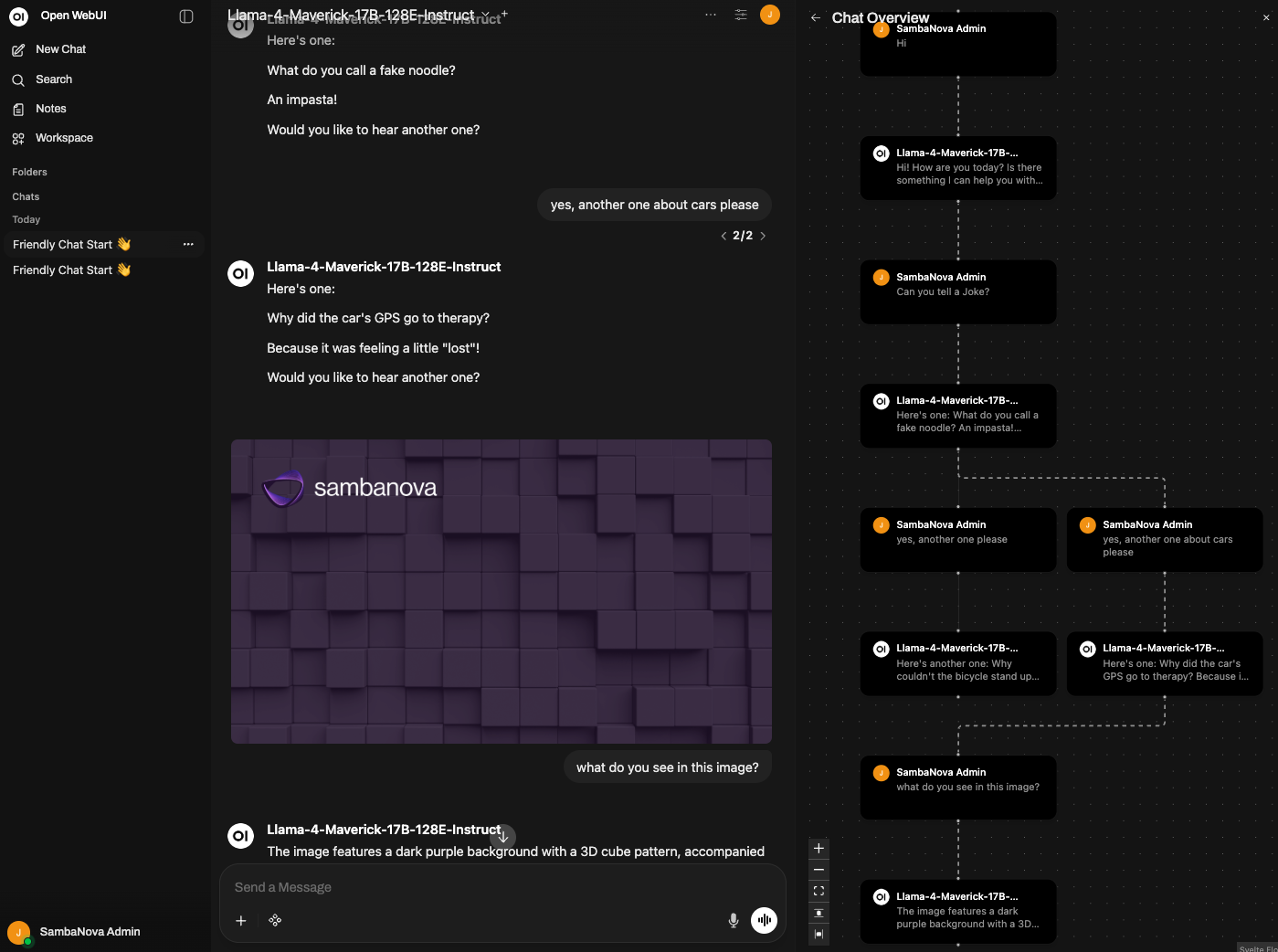
1. Start a new chat and select a SambaNova model (for example, `Llama-4-Maverick-17B-128E-Instruct`).
2. Send a test prompt.
3. Refresh the page to verify conversation persistence.
4. Test tagging and export options.
5. View the Chat Overview diagram to confirm token counts and tool usage.
5. (Optional) Connect through LiteLLM proxy.
If you already run LiteLLM as a unified gateway, add a LiteLLM connection pointing to your proxy host (for example, `http://0.0.0.0:4000/v1`) and use the proxy's API key. SambaNova-backed models registered in LiteLLM appear alongside the direct connection.
6. Test the connection.
1. Start a new chat and select a SambaNova model (for example, `Llama-4-Maverick-17B-128E-Instruct`).
2. Send a test prompt.
3. Refresh the page to verify conversation persistence.
4. Test tagging and export options.
5. View the Chat Overview diagram to confirm token counts and tool usage.
 ## Chat capabilities
Open WebUI provides several features that enhance your SambaNova experience:
* **Model switching**: Switch between SambaNova models mid-conversation without leaving the chat.
* **Multimodal prompts**: Send images to SambaNova's Maverick models or attach documents for quick RAG experiments.
* **Conversation controls**: Tag, edit, duplicate, or export (JSON/Markdown) any thread for auditing or sharing.
* **Audio**: Enable audio input/output in **Settings → Admin Settings → Audio → OpenAI**. Enter your SambaCloud base URL, API key, and whisper model (`Whisper-Large-v3`).
* **Code interpreter**: Use the built-in code interpreter to prototype scripts with SambaNova models.
* **Document knowledge base**: Upload PDFs or text files so Open WebUI's built-in RAG features can ground SambaNova responses.
## Administration
To access the admin panel, click the user icon in the bottom-left corner and select **Admin Panel**.
### Users and groups
Create groups, assign members, and restrict which models, tools, or documents they can access.
### Connections and permissions
Manage available models per team. Promote SambaNova models in model settings to "public" so every user sees the same curated list, or add models to specific user groups.
### Feature toggles
Control access per group to plugins, image uploads, audio, and experimental features from **Admin Settings**.
## Tools and community extensions
Browse the [Open WebUI community catalog](https://docs.openwebui.com/) for tools, plugins, and automations that enhance SambaNova-powered workflows.
To import remote tools (OpenAPI or MCP), add their hosted URL in **Settings → Admin Settings → External Tools**. You can make tools public or share them within specific teams.
## Troubleshooting
| Issue | Solution |
| ------------------------------------- | ----------------------------------------------------------------------------------------------------------------------------------------- |
| Models not appearing after connection | Verify your API key is valid and the base URL is correct (`https://api.sambanova.ai/v1`). Click **Save** again to refresh the model list. |
| Authentication errors | Regenerate your API key in the [SambaCloud console](https://cloud.sambanova.ai/apis) and update the connection settings. |
| Audio features not working | Confirm you've set all three fields in **Audio → OpenAI**: base URL, API key, and the whisper model name. |
| Conversations not persisting | Ensure you've set the `DATA_DIR` environment variable to a writable directory. |
## Additional resources
* [Open WebUI documentation](https://docs.openwebui.com/)
* [SambaCloud API reference](en/api-reference/overview)
* [SambaNova support](https://sambanova.ai/support)
## Chat capabilities
Open WebUI provides several features that enhance your SambaNova experience:
* **Model switching**: Switch between SambaNova models mid-conversation without leaving the chat.
* **Multimodal prompts**: Send images to SambaNova's Maverick models or attach documents for quick RAG experiments.
* **Conversation controls**: Tag, edit, duplicate, or export (JSON/Markdown) any thread for auditing or sharing.
* **Audio**: Enable audio input/output in **Settings → Admin Settings → Audio → OpenAI**. Enter your SambaCloud base URL, API key, and whisper model (`Whisper-Large-v3`).
* **Code interpreter**: Use the built-in code interpreter to prototype scripts with SambaNova models.
* **Document knowledge base**: Upload PDFs or text files so Open WebUI's built-in RAG features can ground SambaNova responses.
## Administration
To access the admin panel, click the user icon in the bottom-left corner and select **Admin Panel**.
### Users and groups
Create groups, assign members, and restrict which models, tools, or documents they can access.
### Connections and permissions
Manage available models per team. Promote SambaNova models in model settings to "public" so every user sees the same curated list, or add models to specific user groups.
### Feature toggles
Control access per group to plugins, image uploads, audio, and experimental features from **Admin Settings**.
## Tools and community extensions
Browse the [Open WebUI community catalog](https://docs.openwebui.com/) for tools, plugins, and automations that enhance SambaNova-powered workflows.
To import remote tools (OpenAPI or MCP), add their hosted URL in **Settings → Admin Settings → External Tools**. You can make tools public or share them within specific teams.
## Troubleshooting
| Issue | Solution |
| ------------------------------------- | ----------------------------------------------------------------------------------------------------------------------------------------- |
| Models not appearing after connection | Verify your API key is valid and the base URL is correct (`https://api.sambanova.ai/v1`). Click **Save** again to refresh the model list. |
| Authentication errors | Regenerate your API key in the [SambaCloud console](https://cloud.sambanova.ai/apis) and update the connection settings. |
| Audio features not working | Confirm you've set all three fields in **Audio → OpenAI**: base URL, API key, and the whisper model name. |
| Conversations not persisting | Ensure you've set the `DATA_DIR` environment variable to a writable directory. |
## Additional resources
* [Open WebUI documentation](https://docs.openwebui.com/)
* [SambaCloud API reference](en/api-reference/overview)
* [SambaNova support](https://sambanova.ai/support)