- Updating the SN40L-H host module BMC firmware
- Updating the SN40L-H host module BIOS
- Recovering the SN40L-H BMC
Safety warnings
Review and observe the following requirements before performing BMC or BIOS updates.Updating BMC firmware
This procedure updates the SN40L-H host module BMC firmware while preserving the existing configuration. Prerequisites:- Access to the SN40L-H host module BMC via the access network
- Chrome or Firefox (latest version)
- BMC patch update downloaded from the SambaNova Support portal
Step 1: Back up existing configuration
Before updating firmware, back up the current BMC configuration. This backup enables recovery if needed. Procedure:- Navigate to
https://<SN40L-H_BMC_IP>in your browser. - Log in and click Sign me in.
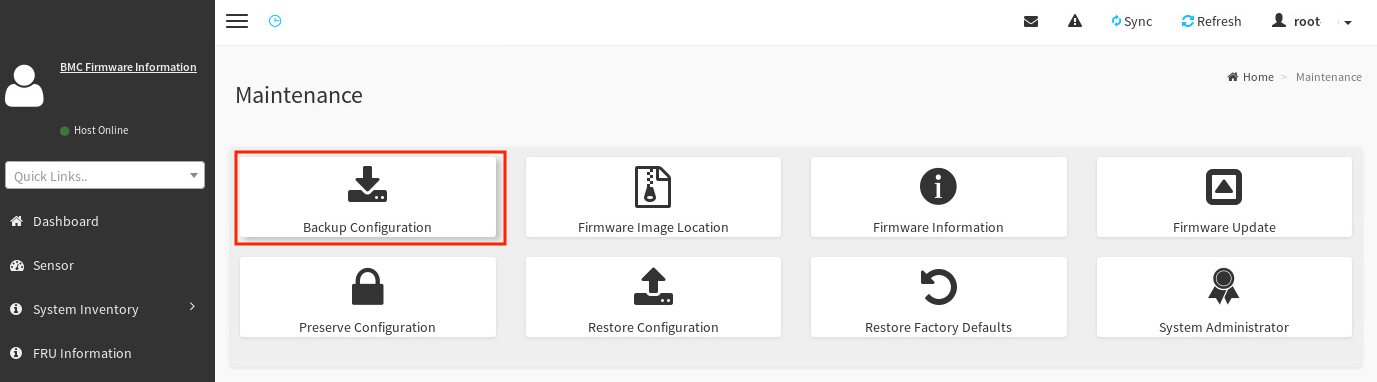
- In the left pane, select Maintenance.
- Select Backup Configuration.
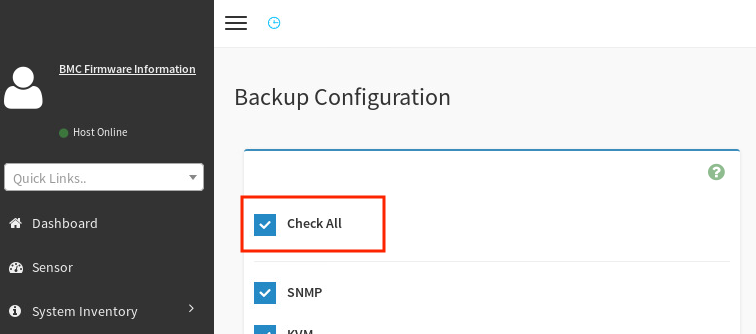
- Select Check All to back up all BMC configuration settings.
- Click Download.
- Click OK to save the
bmc-config.bakfile to your local system.
Step 2: Update BMC firmware
After backing up the configuration, update the BMC firmware. Procedure:- Download the BMC patch update from the SambaNova Support portal.
- Unzip the patch to a directory on your local system.
- In the BMC WebUI, select Maintenance in the left pane.
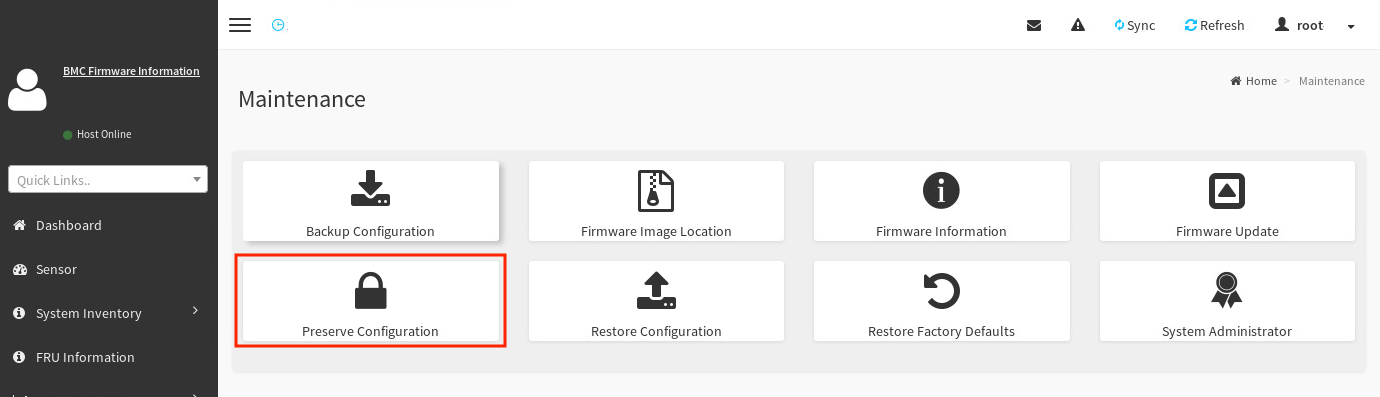
- Select Preserve Configuration.
- Select Check All to preserve all configuration settings. A confirmation message appears.
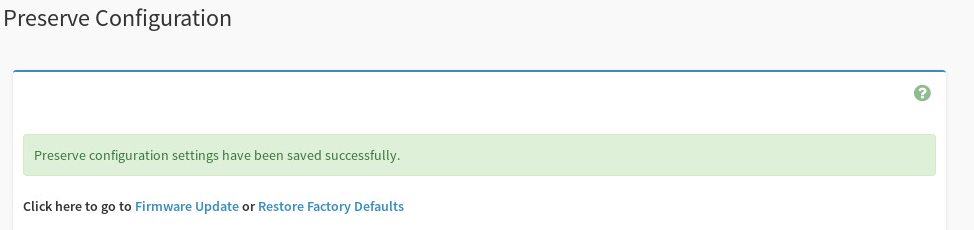
- In the left pane, click Maintenance, then select Firmware Update.
-
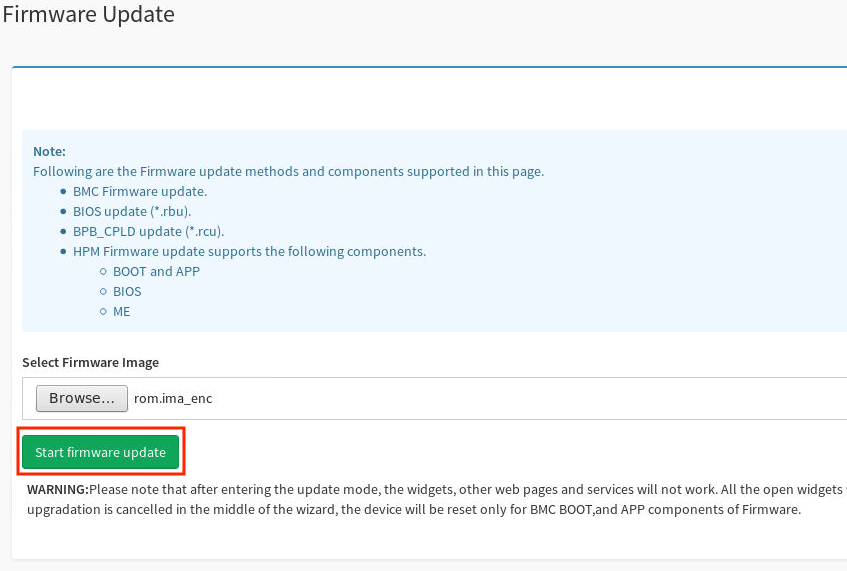
Locate and select the firmware file:
- Click Browse.
- Navigate to
/SN40L rack/<version>/HostBMC_FW/in the unzipped patch bundle. - Select
rom.ima_encand click Open.
- Click Start firmware update.
- Select the Preserve all Configuration checkbox.

- Scroll down and click Proceed to Flash.
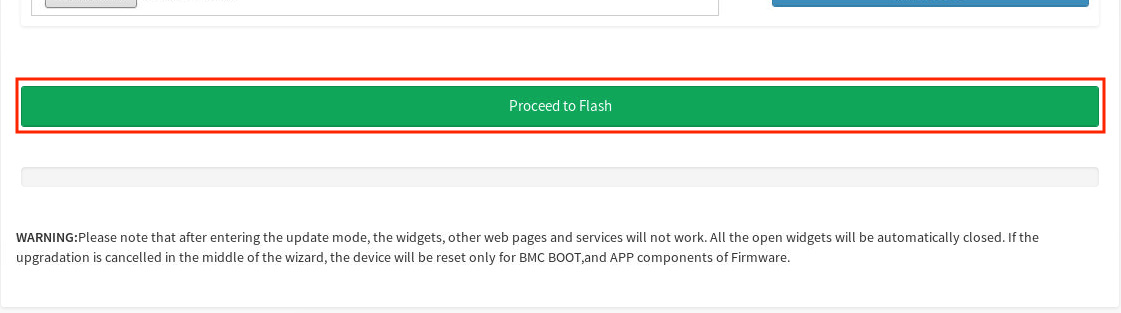
- Click OK to confirm.
The BMC is unreachable for 5–10 minutes while the update applies. The SN40L-H host module OS continues to run normally during this time.
Step 3: Verify the update
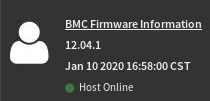
After the BMC becomes accessible again, verify the firmware version. Procedure:- Wait 10 minutes, then log in to the BMC WebUI.
- Check the firmware version in the upper left corner of the dashboard.
Updating BIOS
This procedure updates the SN40L-H host module BIOS firmware.The BIOS update requires a system reboot to complete. Plan for downtime accordingly.
- Access to the SN40L-H host module BMC via the access network
- Chrome or Firefox (latest version)
- Infrastructure patch bundle downloaded and uncompressed
Step 1: Upload and flash BIOS firmware
Procedure:- Navigate to
https://<SN40L-H_BMC_IP>in your browser. - Log in and click Sign me in.
- In the left pane, select Maintenance.
- Select Firmware Update.
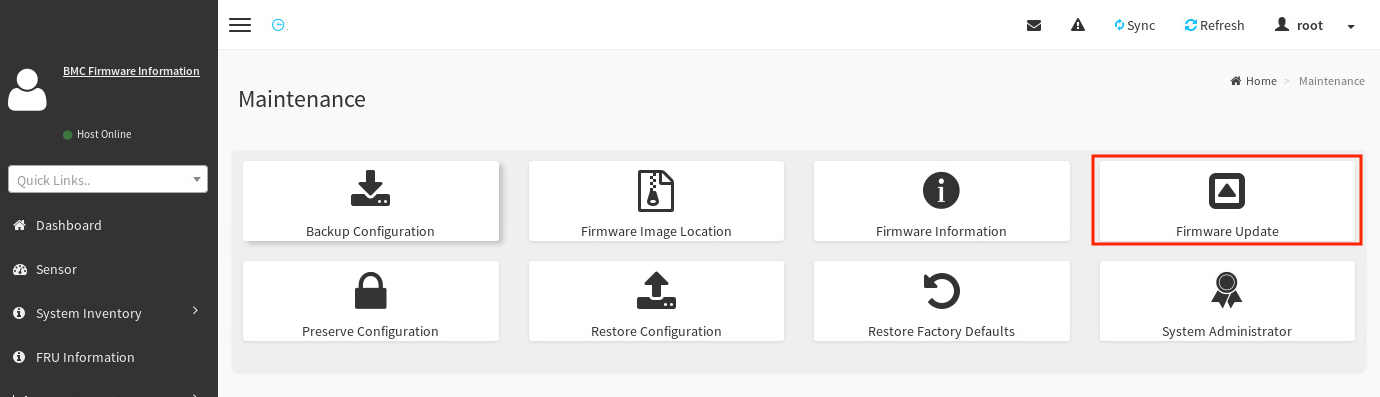
- Locate and select the BIOS file:
- Click Browse.
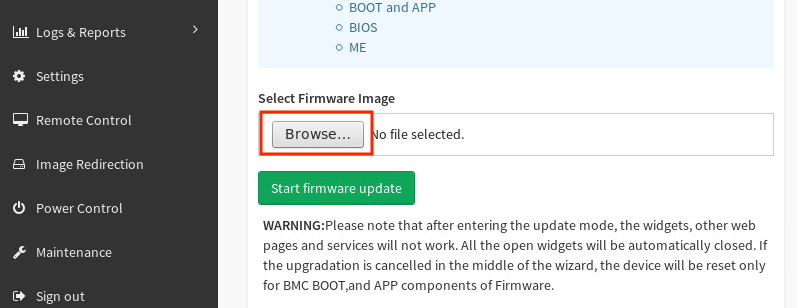
- Navigate to
/Host_BIOS/RBU/in the uncompressed patch bundle. - Select
image.RBUand click Open.
- Click Start firmware update.
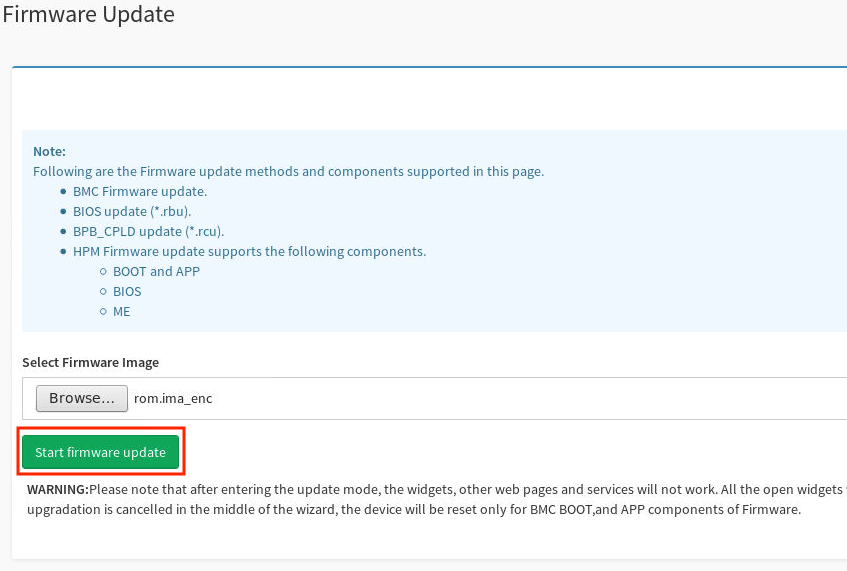
- From the Update Type dropdown, select BIOS.
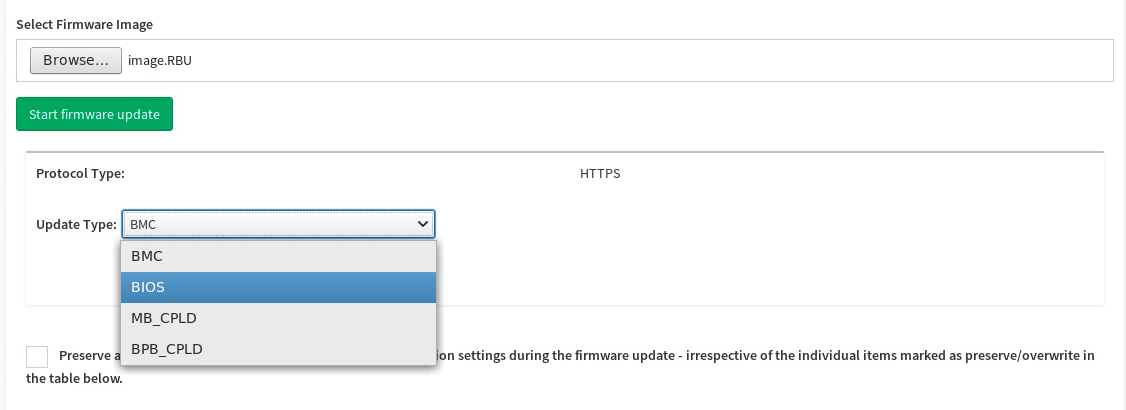
- Click Proceed to Flash, then click OK.
This uploads the BIOS firmware but does not apply it yet.
- When the upload reaches 100%, click Flash BIOS.
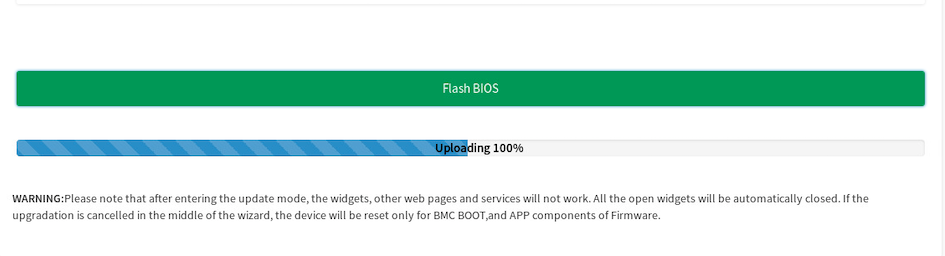
- When the “firmware image has been updated successfully” message appears, click OK.
- When the “Firmware reset has been called” message appears, click OK to log out.
Step 2: Reboot the host module
The BIOS update requires a system reboot to take effect. Procedure:- Connect to the host module OS via SSH:
- Reboot the system:
Step 3: Verify the update
After the host module comes back online, verify the BIOS version. Procedure:- Log in to the BMC WebUI.
- In the left pane, select Maintenance.
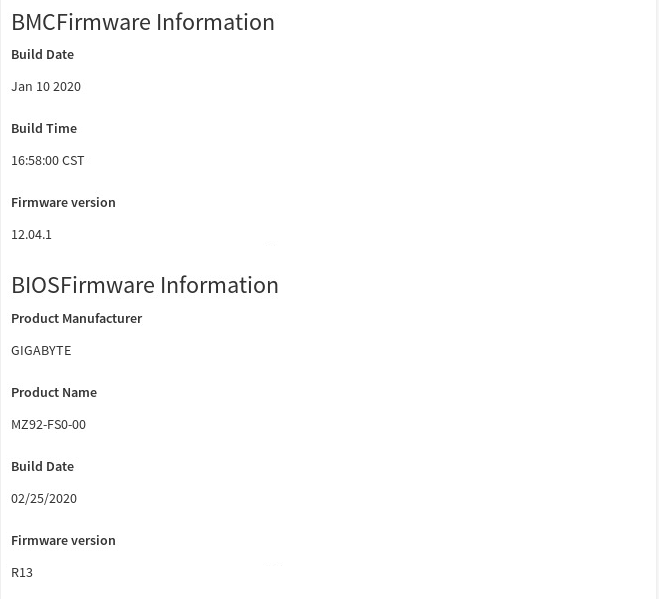
- Select Firmware Information.
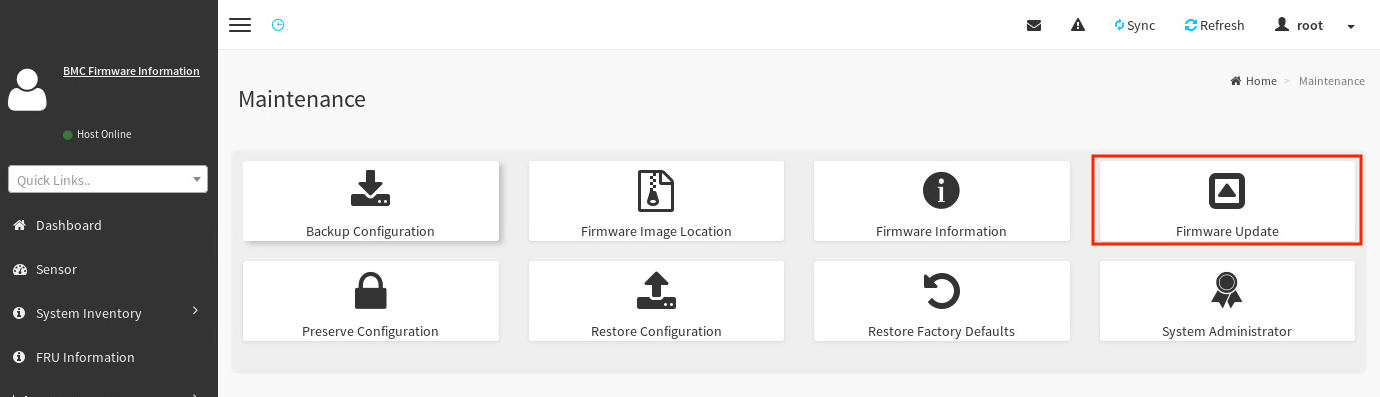
- Verify the versions in BMC Firmware Information and BIOS Firmware Information.