

Prerequisites
- A Cursor Pro plan with Cursor installed
- A SambaCloud account
- A SambaNova API key
Setup
1
Launch Cursor and open model settings
- Open the Cursor application.
- Open Cursor Settings: use
Cmd+Shift+J(macOS) /Ctrl+Shift+J(Windows/Linux), or click the ⚙️ gear icon in the top-right corner of the window. - Click on the Models section.
2
Add SambaNova as a custom model
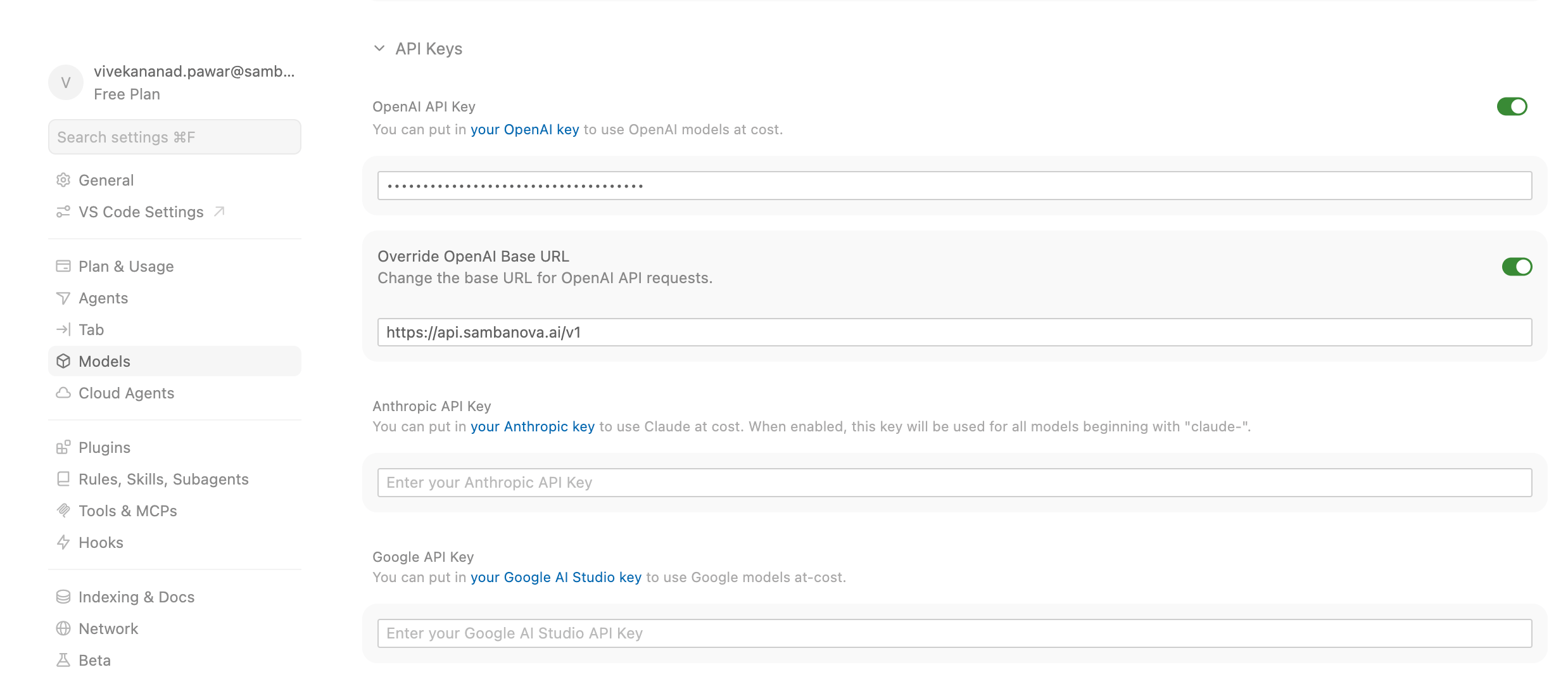
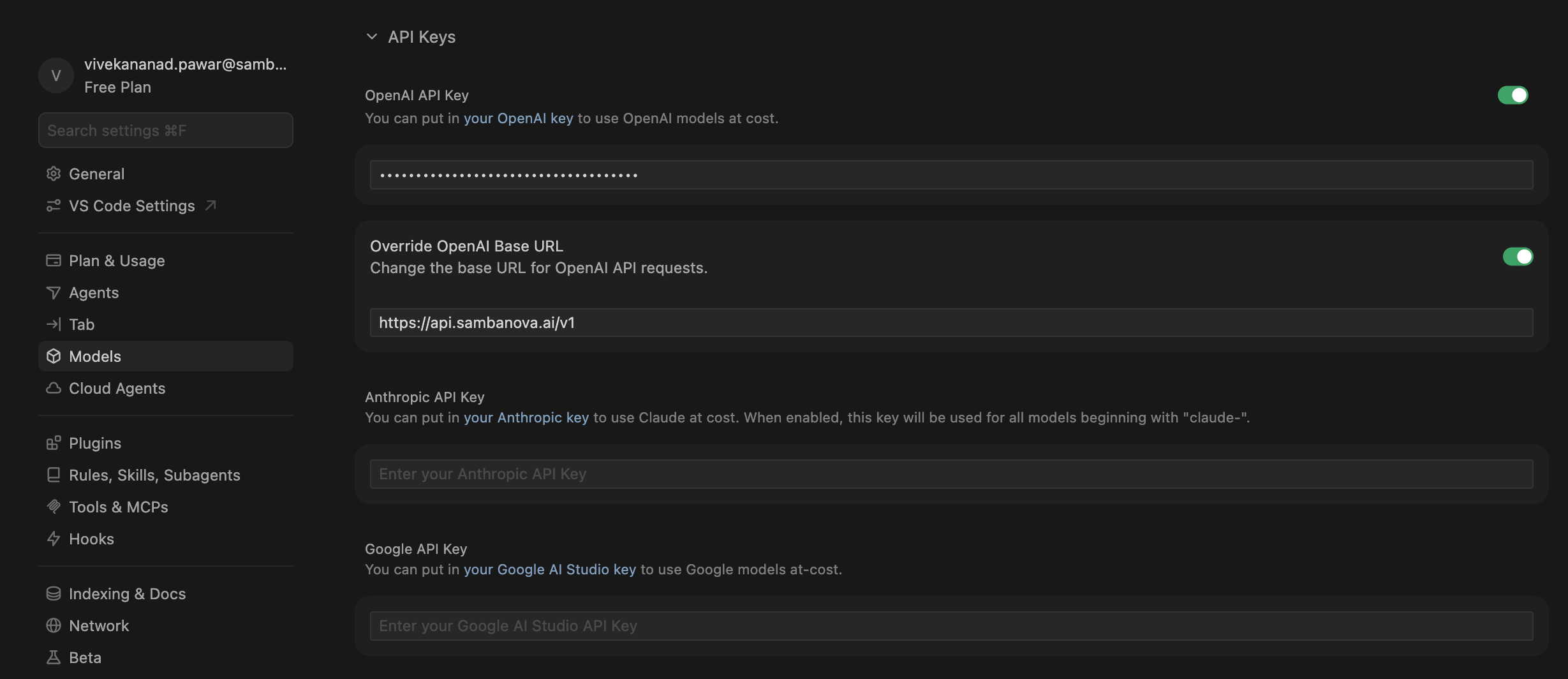
- Go to the API Keys section.
-
Enable the Override OpenAI Base URL toggle.
- Enter:
https://api.sambanova.ai/v1
- Enter:
-
In the OpenAI API Key field, enter your SambaNova API key. (This field is labeled “OpenAI” but will be sent to the SambaNova endpoint you configured above.)
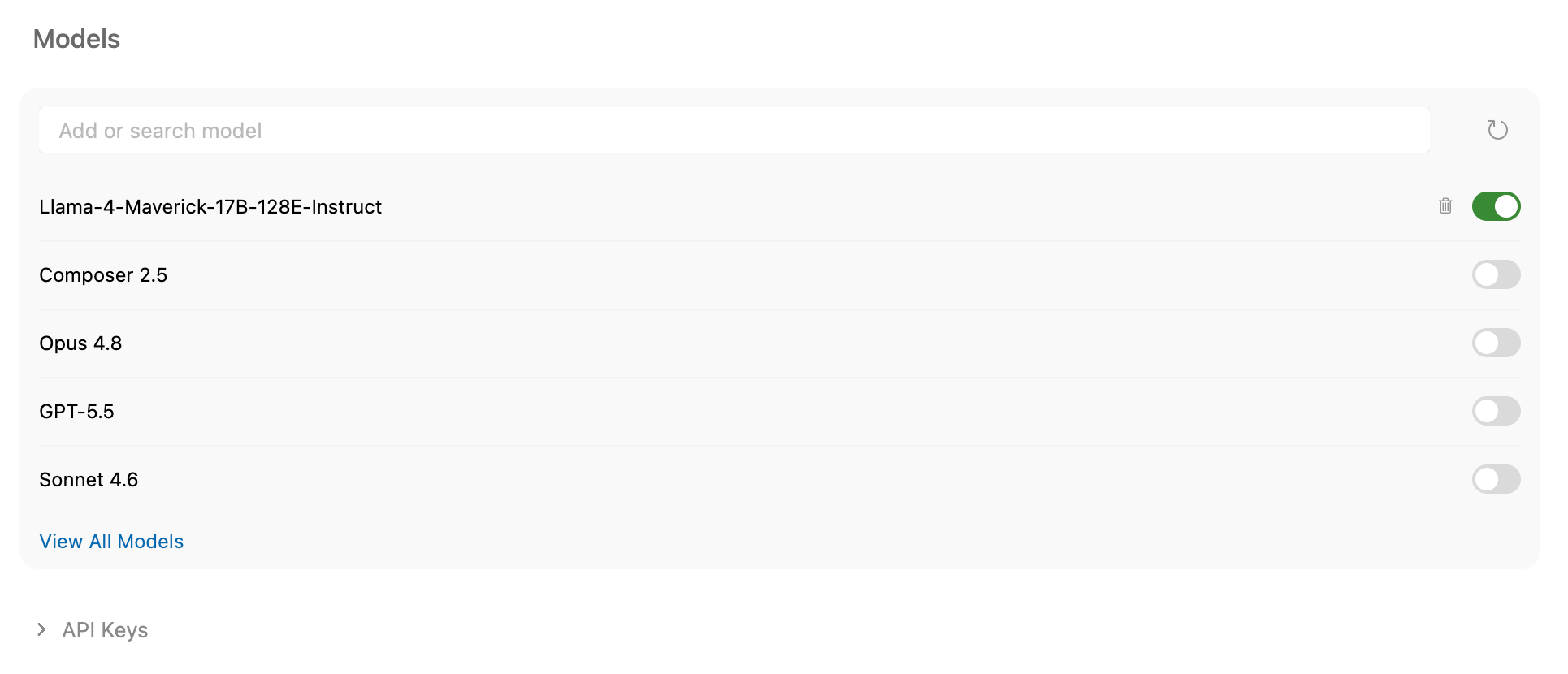
- Click + Add Custom Model.
-
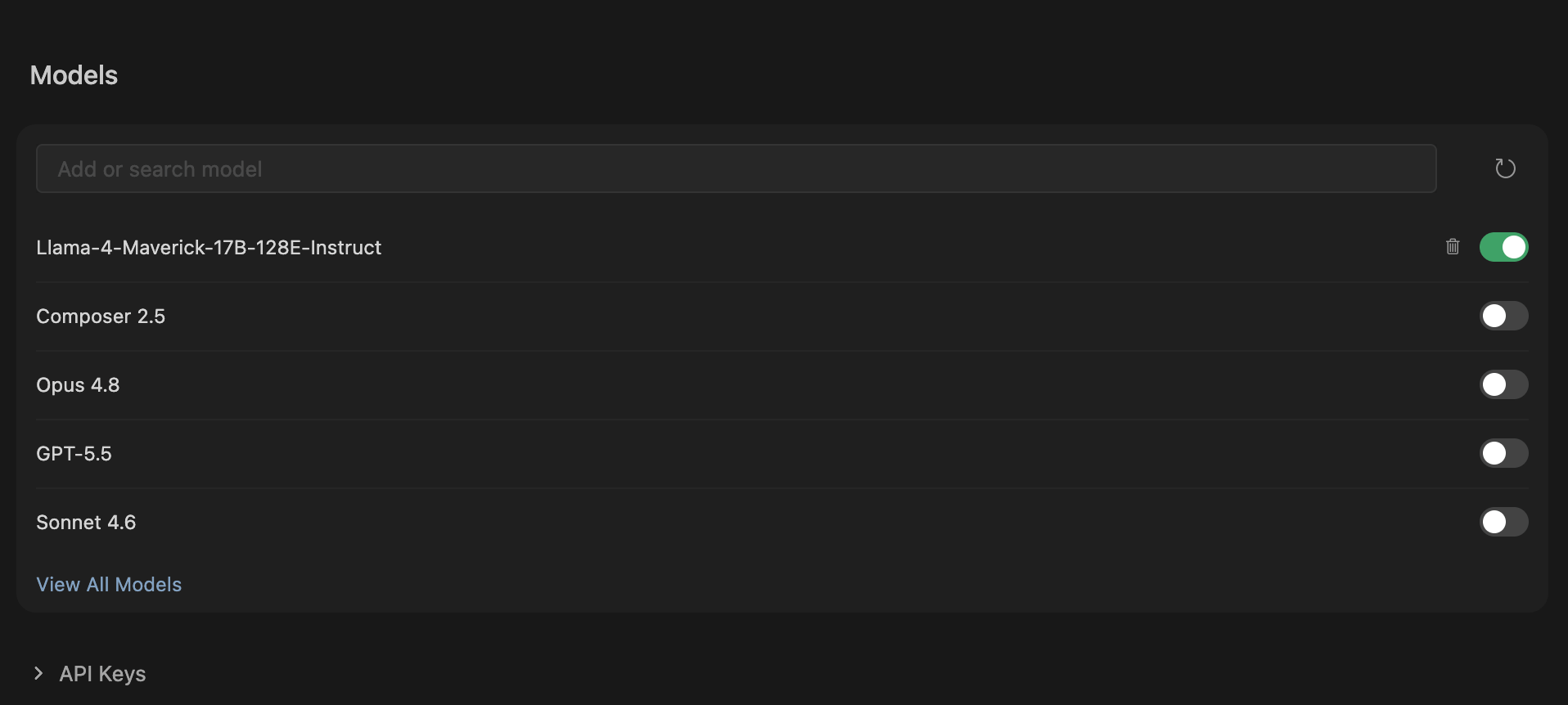
In the Model Name field, paste the model name from your SambaCloud dashboard.
- Example:
MiniMax-M2.7
- Example:
3
Disable other models
- In the models list, disable all default models.
- Ensure only your newly added SambaNova model remains enabled.
4
Confirm and finalize
- Under API Keys, double-check that:
- OpenAI API Key is entered.
- Override OpenAI Base URL is enabled.
- You may see a confirmation popup — click Confirm or Allow if prompted.
5
Start using SambaNova in Cursor
- Select the SambaNova model from the model selector.
- Begin coding or chatting — your requests will now be routed to your selected model on SambaCloud.
Troubleshooting
Model not appearing after adding custom model
Model not appearing after adding custom model
Disable all default models in the Models list — only the SambaNova model should remain enabled.
Authentication error or requests failing
Authentication error or requests failing
Verify Override OpenAI Base URL is set to
https://api.sambanova.ai/v1 and the API key matches your SambaNova API dashboard.Cursor Pro plan required
Cursor Pro plan required
Custom model providers require a Cursor Pro plan. Upgrade at cursor.com/pricing.