

This guide was tested with Open WebUI v0.6.x. If you’re using a different version, some UI paths or features may vary.
Prerequisites
- SambaCloud account and API key.
- Python 3.11 or 3.12 (Open WebUI does not yet support Python 3.13+). Open WebUI recommends the
uvruntime manager, butpipworks too. - Optional: Docker for containerized deployment.
- Optional: LiteLLM proxy credentials if you plan to route SambaNova traffic through LiteLLM instead of connecting directly.
Setup
1
Install Open WebUI
2
Run Open WebUI
http://localhost:3000. For persistent storage, set DATA_DIR:3
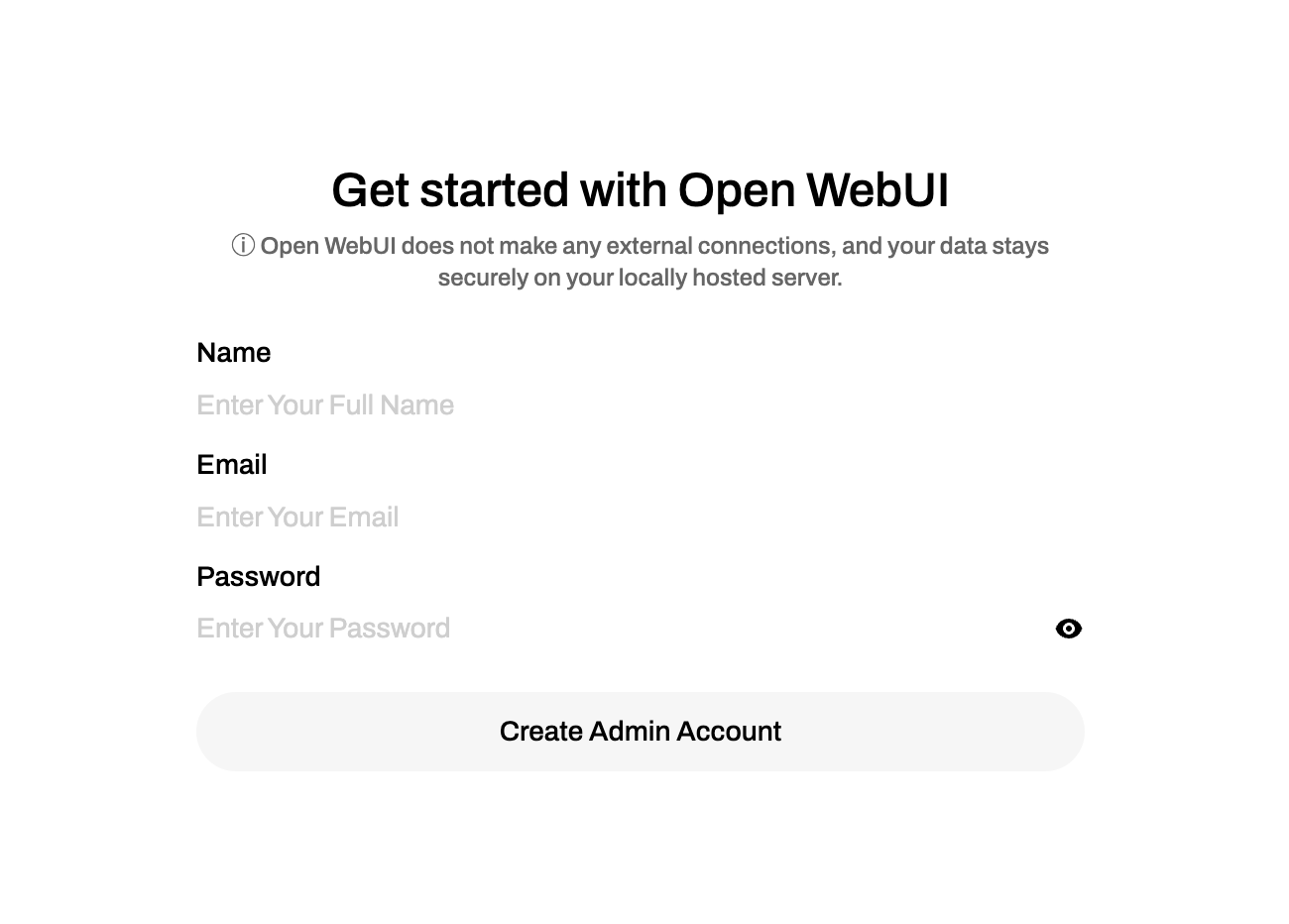
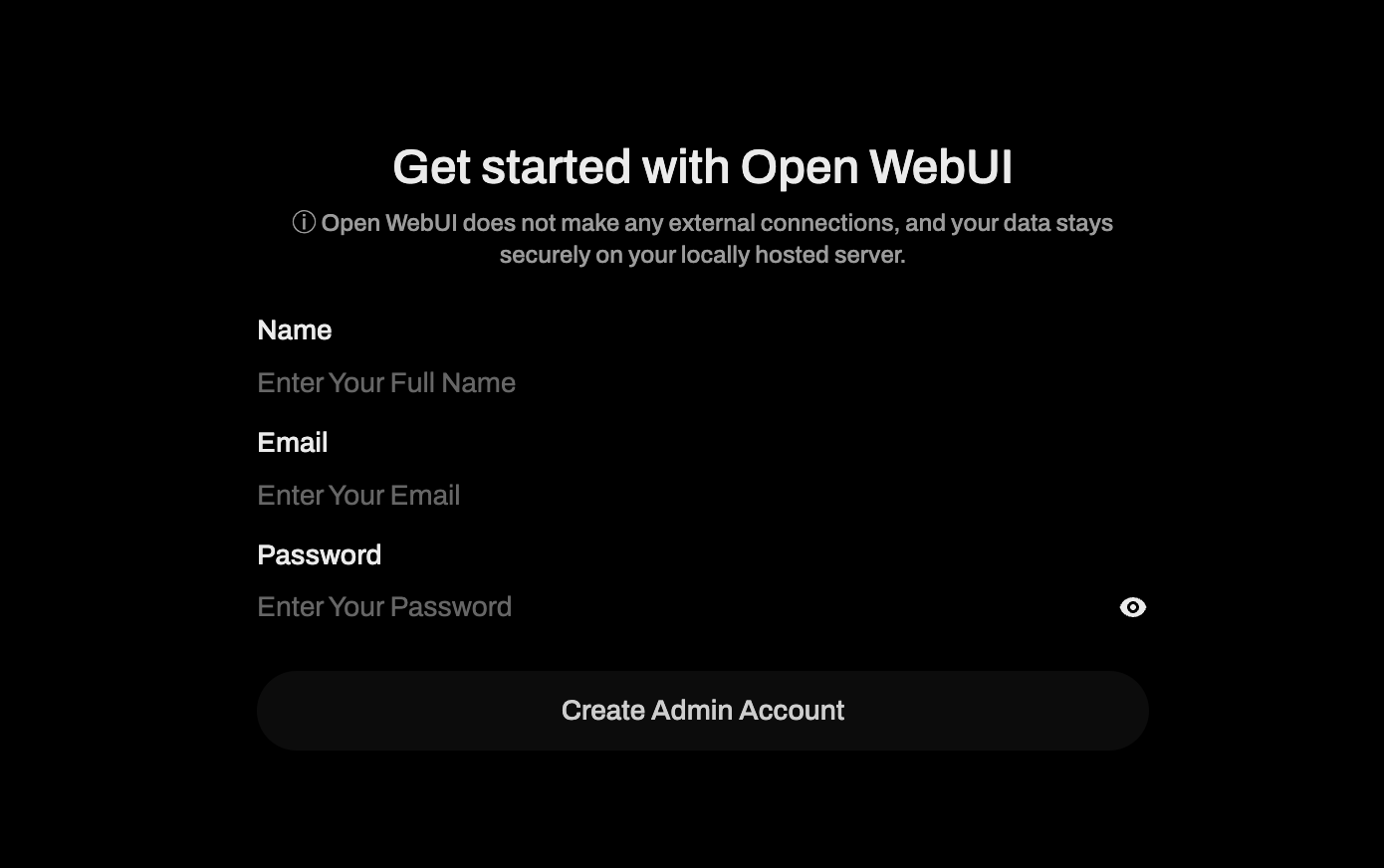
Create the admin account
- Open your browser to
http://localhost:3000. - Click Get Started.
- Follow the onboarding flow to set the admin email, password, and optional team name.
4
Connect to SambaCloud
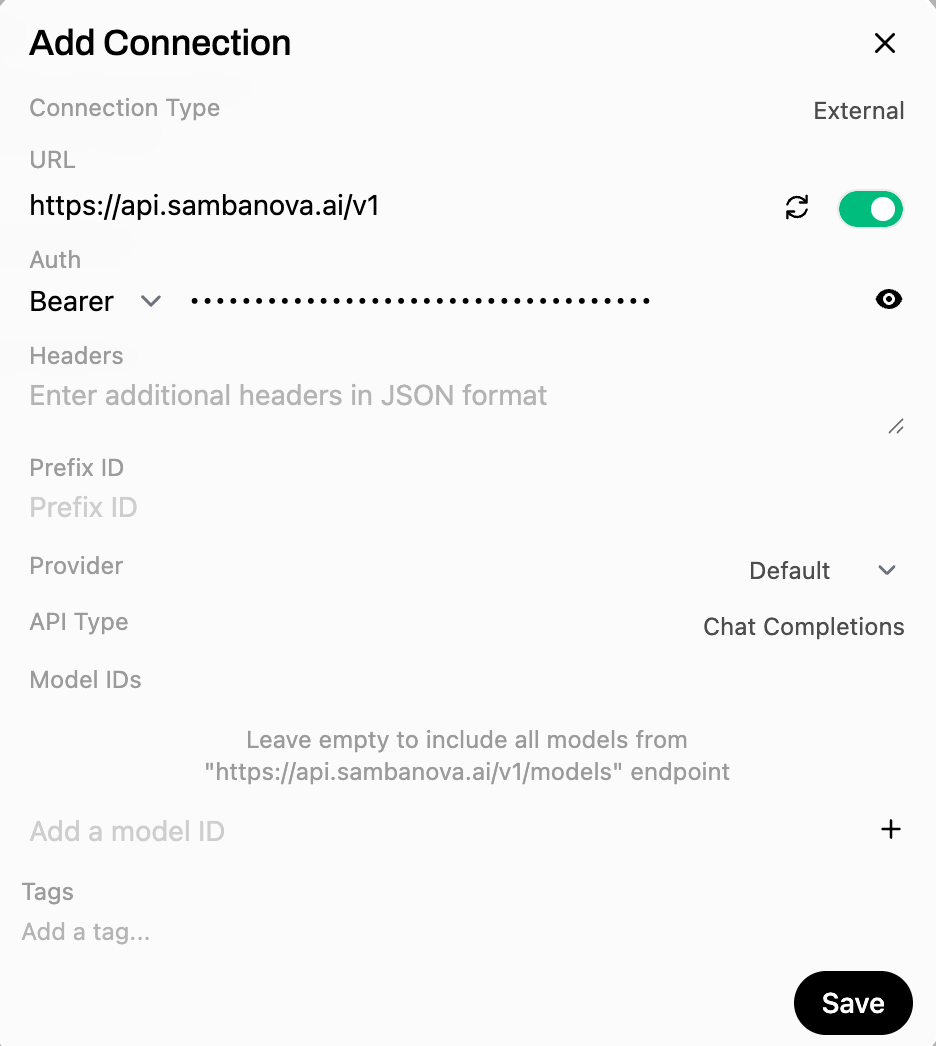
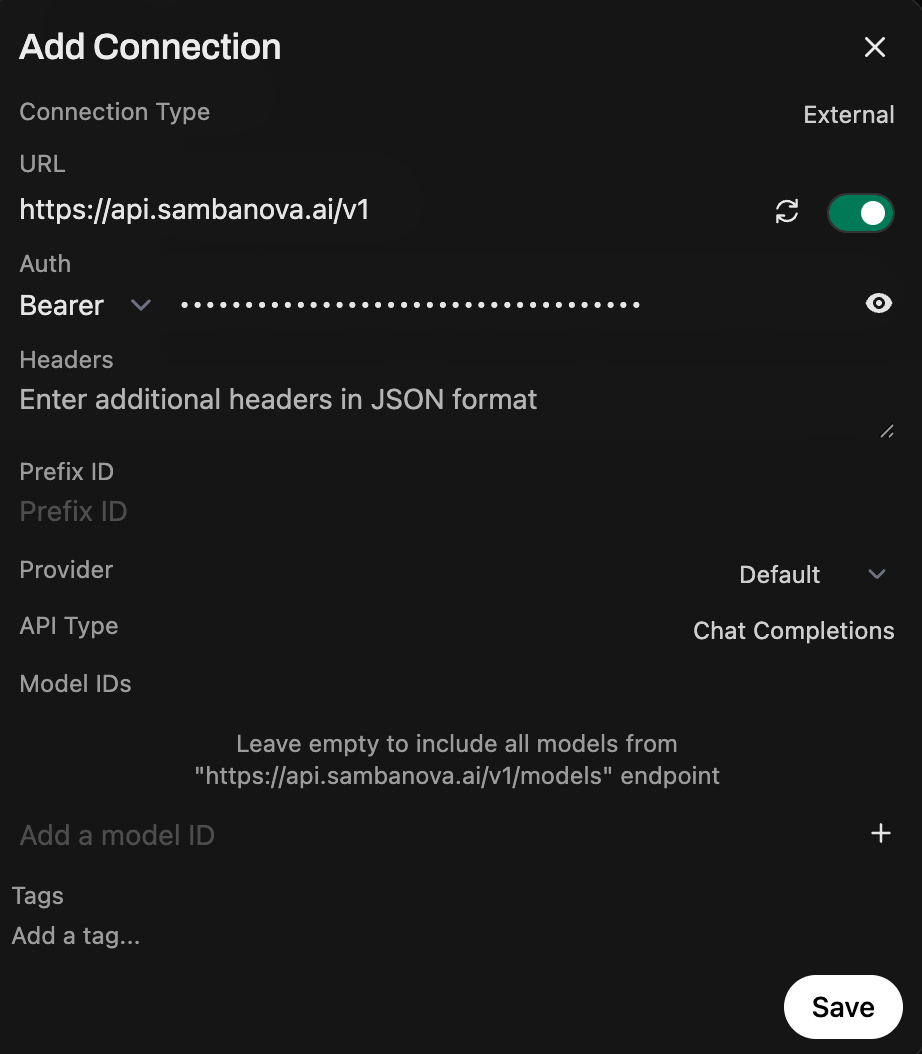
- Click your profile icon and go to Settings → Admin Settings → Connections.
- Select and edit the OpenAI-compatible option.
- Enter your SambaCloud base URL (
https://api.sambanova.ai/v1) and API key. - Click Save.
5
(Optional) Connect through LiteLLM proxy
If you already run LiteLLM as a unified gateway, add a LiteLLM connection pointing to your proxy host (for example,
http://0.0.0.0:4000/v1) and use the proxy’s API key. SambaNova-backed models registered in LiteLLM appear alongside the direct connection.6
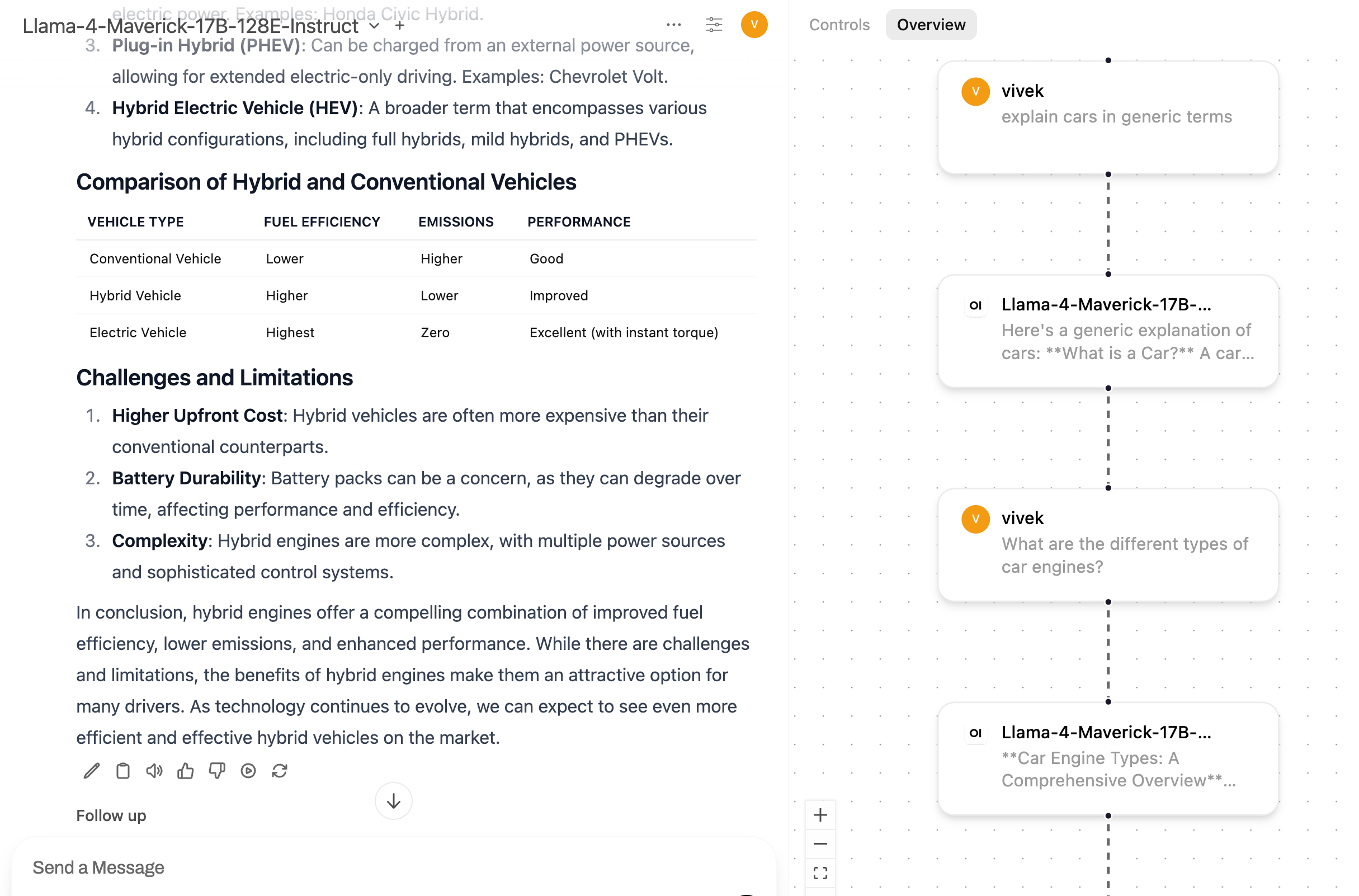
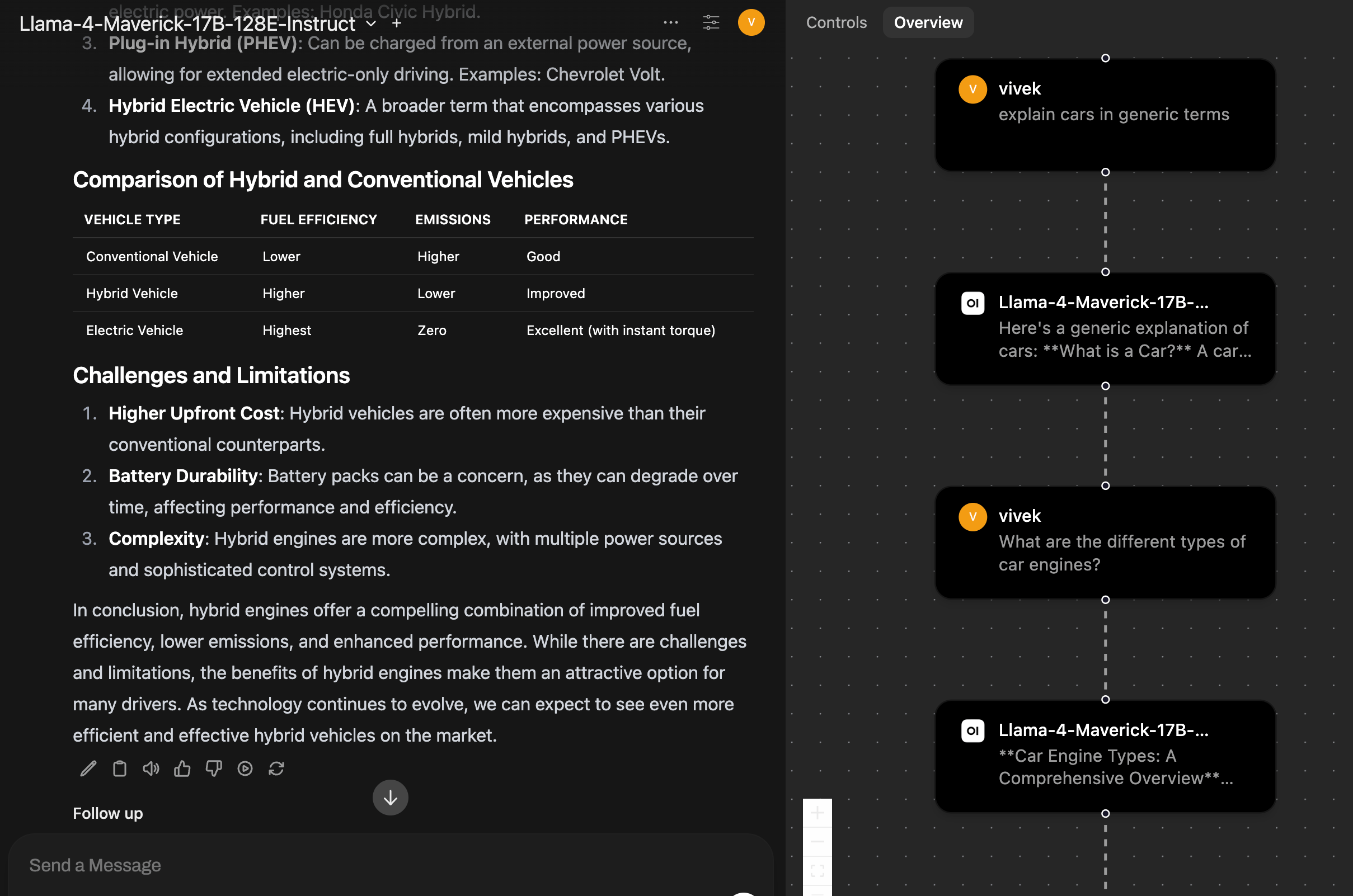
Test the connection
- Start a new chat and select a SambaNova model (for example,
Llama-4-Maverick-17B-128E-Instruct). - Send a test prompt.
- Refresh the page to verify conversation persistence.
- Test tagging and export options.
- View the Chat Overview diagram to confirm token counts and tool usage.
Chat capabilities
Open WebUI provides several features that enhance your SambaNova experience:- Model switching: Switch between SambaNova models mid-conversation without leaving the chat.
- Multimodal prompts: Send images to SambaNova’s Maverick models or attach documents for quick RAG experiments.
- Conversation controls: Tag, edit, duplicate, or export (JSON/Markdown) any thread for auditing or sharing.
- Audio: Enable audio input/output in Settings → Admin Settings → Audio → OpenAI. Enter your SambaCloud base URL, API key, and whisper model (
Whisper-Large-v3). - Code interpreter: Use the built-in code interpreter to prototype scripts with SambaNova models.
- Document knowledge base: Upload PDFs or text files so Open WebUI’s built-in RAG features can ground SambaNova responses.
Whisper-Large-v3 is available on SambaStack deployments only — not on SambaCloud. See Model deprecations.